In the intricate world of software development and system design, clarity is currency. Without a shared visual language, even the most brilliant ideas can drown in miscommunication and inconsistent methodologies. This is precisely where Unified Modeling Language (UML) steps in, providing a standardized, graphical way to represent and document software processes. But understanding UML is one thing; effectively creating and managing those diagrams is another. That's why choosing the best UML diagram generator isn't just a convenience—it's a critical decision that impacts project efficiency, team collaboration, and ultimately, success.
Imagine trying to build a complex machine with everyone using different blueprints, or worse, no blueprints at all. That's the challenge UML was designed to solve. Born out of the need for consistency between 1994 and 1996 and adopted as a standard language in 1997, UML has become indispensable for standardizing software modeling, streamlining operations, and dramatically reducing misunderstandings across all stakeholders.
But with a vast ocean of tools available, how do you navigate the choices and find the one that truly fits your project's unique contours? This guide cuts through the noise, offering you the insights of a seasoned expert to empower your decision.
At a Glance: Your Quick Guide to Choosing
- Define Your Needs First: Before looking at tools, clarify what you need to diagram, who will use it, and how you'll collaborate.
- Not All UML is Equal: Understand the different types of UML diagrams (behavioral vs. structural) to ensure the tool supports your specific requirements.
- Collaboration is Key: For teams, real-time editing, commenting, and version control are non-negotiable features.
- Integration Matters: Your diagramming tool should play nice with your existing development ecosystem (e.g., Slack, GitHub, cloud storage).
- Try Before You Buy: Leverage free trials or versions to test a tool's UI, features, and workflow before committing.
- Consider AI Power: Newer tools like GitMind are transforming diagram creation, making it faster and more accessible, especially for beginners or quick iterations.
- Export and Sharing: Ensure the tool supports the formats you need for documentation, presentations, and sharing with diverse audiences.
Why UML Isn't Just "More Diagrams" – It's Essential
UML isn't just about drawing pretty pictures; it's about creating a universal visual language that bridges the gap between developers, business analysts, project managers, and even end-users. Think of it as the Rosetta Stone for software. By providing clear visual formats, UML drastically improves communication, streamlines operations, and minimizes the costly misunderstandings that often plague complex projects.
Whether you're outlining system functionality, detailing object interactions, or mapping out hardware and software components, UML gives you the precise grammar to do so. It's about clarity, consistency, and control.
The Two Pillars of UML: Behavioral and Structural Diagrams
To choose the right tool, you first need to understand the types of diagrams you'll be creating. UML diagrams are broadly categorized by their purpose:
- Behavioral UML Diagrams: These focus on the dynamic aspects of a system, illustrating how objects interact and how the system behaves over time.
- Use Case Diagram: Shows system functionality and how users interact with it.
- Activity Diagram: Like a flowchart, it describes the flow of activities and processes.
- Sequence Diagram: Displays the order of object interactions over time, crucial for understanding process flow.
- State Machine Diagram: Illustrates how an object responds to events and transitions between states.
- Structural UML Diagrams: These depict the static structure of a system, showing its components and their relationships.
- Class Diagram: The cornerstone of object-oriented design, illustrating classes, attributes, methods, and their relationships.
- Object Diagram: Shows instances of classes and their relationships at a specific moment.
- Component Diagram: Represents software components, their internal structure, and dependencies.
- Deployment Diagram: Visualizes the physical deployment of software artifacts on hardware nodes.
While there are many more types (like Communication, Timing, Composite Structure, Package, and Profile Diagrams), understanding the distinction between behavioral and structural diagrams is your first step toward selecting a tool that accurately and efficiently supports your modeling needs.
Navigating the Maze: What Makes a UML Generator "Best"?
The "best" UML diagram generator isn't a one-size-fits-all answer. It's the tool that perfectly aligns with your specific requirements, workflow, and budget. To help you zero in on that perfect fit, let's break down the essential criteria you should consider.
1. Ease of Use and User Interface (UI/UX)
A powerful tool is useless if it's too difficult to learn or frustrating to use. Look for an intuitive drag-and-drop interface, clear iconography, and a logical layout.
- For Beginners: A simplified interface with pre-built templates and smart drawing assistance will accelerate your learning curve.
- For Experts: Shortcuts, advanced editing options, and keyboard controls can significantly boost efficiency.
2. Comprehensive Diagram Type Support
Does the tool support all the UML diagram types you need now and potentially in the future? Some tools specialize in a few common types, while others offer extensive libraries covering the entire UML specification. If your projects demand a wide array of diagrams, breadth of support is critical.
3. Collaboration Features
In today's interconnected work environments, collaboration isn't optional.
- Real-time Co-editing: Multiple users should be able to work on the same diagram simultaneously.
- Commenting and Feedback: Easy ways to add notes, suggest changes, and resolve discussions directly on the diagram.
- Version History: The ability to track changes, revert to previous versions, and understand who did what.
- Sharing Options: Secure ways to share diagrams with internal and external stakeholders.
4. Integration Capabilities
Your UML diagrams are rarely standalone artifacts. They're part of a larger ecosystem.
- Development Tools: Integration with project management tools (Jira, Asana), code repositories (GitHub, GitLab), and communication platforms (Slack, Microsoft Teams).
- Cloud Storage: Seamless connectivity with Google Drive, Dropbox, OneDrive.
- Other Design Tools: Compatibility with other visual design or documentation tools.
5. Customization Options
While UML has standards, you'll often want to customize your diagrams to match branding, improve readability, or add domain-specific elements.
- Shape Libraries: Extensive and customizable shape libraries.
- Styling: Control over colors, fonts, line styles, and formatting.
- Templating: The ability to create and save custom templates for reuse.
6. Export and Sharing Formats
How will you share your diagrams with others?
- Common Image Formats: PNG, JPG, SVG for web and presentations.
- Document Formats: PDF for static documentation.
- Interactive Formats: HTML, embeddable links for dynamic sharing.
- Vector Formats: SVG for scalable, high-quality graphics.
7. Cost and Licensing
UML tools range from completely free to expensive enterprise subscriptions.
- Free Tiers/Open Source: Great for individuals or small projects, but often come with limitations (features, number of diagrams, export options).
- Subscription Models: Monthly or annual fees, typically offering more features, storage, and support.
- One-time Purchases: Less common now, but some desktop applications still offer this.
Evaluate the long-term cost against the features you truly need.
8. Support and Documentation
When you hit a snag, can you get help?
- Online Resources: Comprehensive knowledge bases, tutorials, and community forums.
- Customer Support: Responsive email, chat, or phone support, especially for paid plans.
9. AI-Powered Features
The advent of AI is revolutionizing diagramming. Tools that leverage AI can:
- Generate Diagrams from Text: Convert natural language descriptions or code snippets into visual diagrams.
- Provide Explanations: Offer insights into the logic behind generated diagrams.
- Suggest Refinements: Proactively recommend optimizations or alternative layouts.
- Automate Updates: Easily modify and regenerate diagrams based on prompt changes.
10. Scalability and Performance
Consider how the tool performs with large, complex diagrams or numerous concurrent users. Will it slow down your workflow as your projects grow?
Spotlight: Top UML Diagram Generators in 2025
The market for UML diagram generators is robust, with tools catering to diverse needs, from simple sketching to enterprise-grade modeling. Here’s a rundown of some of the leading contenders, leveraging their strengths and acknowledging their limitations.
Visme UML Diagram Maker: The Design-Forward Collaborator
Visme shines for its emphasis on visual appeal and user-friendly design. If your priority is creating aesthetically pleasing diagrams that integrate seamlessly into presentations or reports, Visme is a strong candidate.
- Features: Customizable templates, drag-and-drop interface, extensive annotation tools, full customization, and real-time collaboration (commenting, editing).
- Pros: Wide range of beautiful templates, intuitive interface for design-conscious users, robust real-time collaboration features.
- Cons: Advanced export features (like HTML) often require a paid upgrade, and its broader design focus might mean it's less specialized for complex, code-centric UML compared to developer-focused alternatives.
Lucidchart: The Versatile All-Rounder
Lucidchart has earned its reputation as a highly versatile and incredibly user-friendly diagramming tool. It's often a go-to for teams needing a broad range of diagram types beyond just UML.
- Features: Extensive UML sequence markup, highly customizable shape libraries, powerful collaborative features, and a clean interface.
- Pros: Rich feature set, exceptionally easy collaboration, highly intuitive for users of all skill levels.
- Cons: Its free tier offers limited features, and some users report that advanced sharing options can be less straightforward than desired.
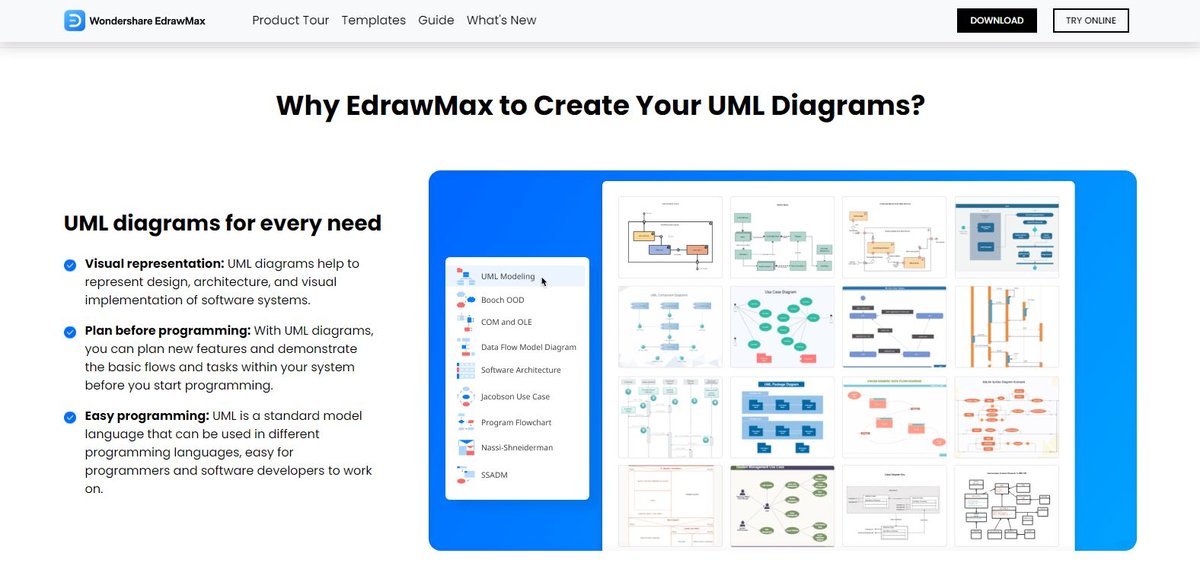
Edraw Max: The Compatibility Champion
Edraw Max offers a comprehensive suite of diagramming capabilities, standing out for its superior compatibility and extensive template library, available both as a desktop application and online.
- Features: Wide variety of templates, user-friendly interface, both desktop and online versions, and easy sharing/collaboration.
- Pros: Excellent compatibility with various file formats, an extensive library of templates for almost any diagramming need.
- Cons: Can be daunting for absolute beginners due to its feature richness, and its subscription costs can be on the higher end.
Creately: Simplified Collaboration, Beautifully
Creately focuses on simplifying the diagramming process, making it highly accessible while still offering robust real-time collaboration.
- Features: Real-time collaboration, expert-made shape libraries, hundreds of free templates for quick starts.
- Pros: Designed for end-to-end visual design projects, very user-friendly with a clear focus on ease of use.
- Cons: Some users find its template options can feel a bit limited for highly specialized UML diagrams, and managing subscriptions has been cited as occasionally difficult.
Miro: The Collaborative Whiteboard Ecosystem
Miro isn't just a UML tool; it's a versatile online whiteboard that integrates UML diagramming into a broader collaborative workspace, ideal for brainstorming and design sprints.
- Features: Intuitive design, diverse UML tools, built-in templates, easy integration with many platforms, and superior collaboration.
- Pros: Excellent pre-made templates, effortless sharing, multi-device compatibility, and a fantastic platform for cross-functional teamwork.
- Cons: Limited offline functionality can be a drawback for some, and its premium pricing can be high for full feature access.
Venngage: Data Visualization Meets UML Simplicity
Venngage excels at transforming data into easily digestible visuals. While not exclusively a UML tool, it offers capabilities for simple, clear diagrams that benefit from its strong data visualization foundation.
- Features: Easy-to-edit templates, powerful data visualization options, and extensive customization for clear communication.
- Pros: Highly intuitive, offers professional-grade templates, allows for quick customization to match branding.
- Cons: Collaboration features are more limited compared to dedicated team diagramming tools, and its free version is quite restricted.
Cacoo: Secure and Integrated Workflows
Cacoo is known for its secure file management and seamless integration into existing workflows, making it a reliable choice for businesses prioritizing security and process automation.
- Features: Secure file management, extensive UML templates, real-time collaboration, and automatic workflow integration.
- Pros: A wide range of templates for various needs, excellent real-time collaboration capabilities.
- Cons: The login process can sometimes be complex, and its feature set might not be ideal for absolute beginners who need a simpler entry point.
Sketchboard: The Developer's Canvas
Sketchboard offers an infinite canvas tailored for high-level software requirements and system design, making it a strong choice for developers who appreciate a more freeform yet structured approach.
- Features: Infinite canvas for creativity, real-time collaboration, and integrations with developer tools like Slack, Google Drive, and GitHub.
- Pros: Supports a variety of diagram types, highly developer-focused with useful integrations for coding workflows.
- Cons: Can be expensive, and some users might find its customization options less extensive compared to more general-purpose design tools.
yUML: Text-Based Diagramming Purity
yUML stands out as a unique, simple online tool that generates UML diagrams purely from text. It's a minimalist's dream for quick, code-like diagramming.
- Features: Generates diagrams from minimal code, embeddable in various platforms, interactive customization.
- Pros: Exclusively focused on UML, offers numerous templates, extremely easy sharing via simple URLs.
- Cons: Lacks advanced graphical collaboration features, and the text-based input can be complicated for beginners not familiar with its syntax.
Visual Paradigm: Comprehensive and Beginner-Friendly
Visual Paradigm balances a comprehensive feature set with an intuitive interface, making it an excellent option for beginners seeking a powerful yet accessible UML tool.
- Features: Intuitive interface, easy UML syntax checks, web-based access, and pre-made templates.
- Pros: Ideal for beginners due to its user-friendly design, lightweight, and offers comprehensive customization options.
- Cons: Lacks some of the advanced real-time collaboration features found in other tools, and mastering its keyboard shortcuts can take time.
The AI Edge: GitMind AI UML Diagram Generator
While many tools offer impressive features, artificial intelligence is rapidly redefining what's possible in diagramming. The GitMind AI UML Generator exemplifies this shift, providing a powerful, free online tool that transforms various inputs into precise UML diagrams with unprecedented speed and ease.
This isn't just another diagram editor; it's a leap forward in how we conceptualize and visualize software systems. Whether you're a seasoned architect or just starting out, GitMind's AI-powered approach can dramatically streamline your workflow. When you're looking to Generate UML diagrams online, GitMind offers a truly innovative path.
How GitMind AI UML Chart Maker Works
The process is remarkably simple and intuitive:
- Input Your Idea: You can start with plain text descriptions, paste existing Mermaid code (a popular markdown-like syntax for diagrams), or even upload an image. The AI then takes over, understanding your intent.
- AI-Generated UML Diagrams: With just a few clicks, the AI generates the desired UML diagram types—be it class, sequence, activity, or use case diagrams—converting your abstract ideas into structured visuals.
- Export and Share: Once generated, you can download your diagrams in popular formats like PNG, SVG, or PDF, or share them via a public link for real-time collaboration.
Key Benefits of GitMind AI UML Chart Maker
GitMind isn't just about speed; it's about intelligence and support throughout the modeling process:
- AI-Powered Precision: It creates accurate charts rapidly, leveraging advanced AI parsing and modeling capabilities to interpret your input and construct logically sound diagrams.
- Detailed Explanation: A unique advantage is the AI's ability to provide logic explanations for each step of the generated chart, helping you understand the underlying structure and rationale.
- Advanced Refinements: The tool offers AI-driven suggestions for optimization, allowing you to fine-tune your diagrams for clarity and accuracy effortlessly.
- Up-to-Date Flexibility: Requirements change. GitMind allows for easy updates and regeneration of diagrams with simple prompt modifications, ensuring your models always reflect the latest project state.
- Team Collaboration: Supports real-time collaboration with version control and edit history, making it easy for teams to work together and track changes.
- Easy Sharing: Diagrams can be shared via a public link or exported in multiple formats, perfect for documentation, reports, or presentations.
Real-World Use Cases
GitMind's AI capabilities make it invaluable across various roles:
- Educators: Can quickly create visual models for teaching software engineering, system design, and algorithms, simplifying complex concepts for students.
- Developers: Transform high-level requirements or code snippets into clear diagrams, improving code structure, facilitating peer reviews, and enhancing team alignment.
- Business Analysts: Model processes and workflows with ease, validating functional requirements and communicating business logic effectively to technical teams.
Pricing and Export Options
GitMind's UML diagram tool offers 3 free tries, providing a great opportunity to test its AI capabilities. Continued use typically requires upgrading to a Pro plan. Diagrams can be exported in PNG, PDF, and SVG formats. Sharing is made simple through public links or by embedding diagrams directly into project documents, making it specialized for visual modeling and direct diagram generation from various inputs.
Making Your Choice: A Step-by-Step Approach
With a clear understanding of what makes a UML generator stand out and a review of the top tools, it's time to chart your own course.
Step 1: Define Your Core Needs and Scope
Before you even open a browser tab to download a demo, sit down and identify your project's specific requirements.
- What types of UML diagrams will you primarily use? (e.g., mostly class and sequence, or a broad range?)
- Who will be using the tool? (Individual developer, small team, large enterprise, students?)
- What's your collaboration requirement? (Simple sharing, real-time co-editing, robust version control?)
- What's your budget? (Free, low-cost subscription, enterprise-level investment?)
- What's your technical skill level? (Beginner, intermediate, expert?)
Step 2: Prioritize Features – What's Non-Negotiable?
Based on your needs, list out the essential features. Is real-time collaboration absolutely critical? Do you need extensive code generation capabilities? Is integration with a specific IDE or project management tool a deal-breaker? Distinguish between "must-haves" and "nice-to-haves."
Step 3: Explore and Experiment – The Power of Demos
Most reputable UML generators offer free trials or limited free versions. This is your golden opportunity to get hands-on.
- Test the UI: Does it feel intuitive? Can you find the tools you need easily?
- Create a Sample Diagram: Try to build a small, representative diagram from your project. How easy is it to draw, connect, and modify elements?
- Test Collaboration: If teamwork is important, try collaborating with a colleague. Does it work smoothly?
- Check Export Options: Does it export in the formats you need, and does the output quality meet your standards?
Step 4: Consider Your Existing Ecosystem
Think about how the new tool will fit into your current software development and project management stack.
- Does it integrate with your version control system?
- Can it connect to your chosen project management platform?
- Will it play well with your documentation tools?
Seamless integration minimizes friction and maximizes productivity.
Step 5: Think Long-Term – Future-Proofing Your Choice
Consider the scalability of the tool. As your projects grow in complexity and your team expands, will the generator keep up? Is the vendor actively developing and updating the tool? Emerging trends like AI integration, as seen with GitMind, are also worth considering for future efficiency gains.
Common Pitfalls to Sidestep
Even with careful consideration, it's easy to fall into common traps when choosing a new tool.
- Overlooking Collaboration Needs: Choosing a single-user tool for a team project leads to messy file sharing and version conflicts. Always prioritize collaboration features for multi-person efforts.
- Choosing Too Complex or Too Simple: A tool that's too powerful for your needs can overwhelm and slow you down. One that's too basic will quickly become a bottleneck as your requirements evolve. Find the right balance.
- Ignoring Export and Integration Requirements: Getting diagrams out of the tool and into your workflow is just as important as creating them. Don't let your beautiful diagrams get trapped in a proprietary format.
- Skipping the Free Trial: This is the most preventable mistake. Online reviews are helpful, but nothing beats hands-on experience for determining a tool's true fit for your workflow.
- Neglecting the Learning Curve: Even the best tool requires some ramp-up time. Be realistic about your team's capacity to learn a new system, and look for good documentation or tutorials.
UML Best Practices, Regardless of Your Tool
Even the best UML generator can't compensate for poor modeling practices. To maximize the value of your diagrams:
- Keep Diagrams Concise and Focused: Each diagram should tell a specific story or illustrate a particular aspect of the system. Avoid trying to cram too much information into one visual.
- Adhere to Standard Notation: While customization is good, stick to recognized UML notation. This ensures your diagrams are universally understood by anyone familiar with UML.
- Document Assumptions and Context: Diagrams are rarely self-explanatory. Add notes, comments, or accompanying text to explain design decisions, constraints, and assumptions.
- Iterate and Refine: UML diagrams are living documents. Expect to revise and update them as your project evolves and new insights emerge.
- Share and Solicit Feedback: Get your diagrams in front of stakeholders early and often. Their feedback is invaluable for catching misunderstandings and refining your designs.
Your Next Steps: Empowering Your Project's Visualization
Choosing the right UML diagram generator is an investment in clarity, efficiency, and project success. It's about finding a partner that empowers you to transform complex ideas into understandable visuals, fosters seamless collaboration, and integrates effortlessly into your development ecosystem.
By carefully evaluating your needs against the robust features offered by leading tools, and by leveraging the power of free trials and AI-driven innovations like GitMind, you can confidently select a generator that not only meets your current demands but also supports your future growth. Take that first step: define your requirements, explore your options, and start visualizing a clearer path forward for your projects. The right tool is out there, waiting to bring your designs to life.